Two OpenAI models in the same editor. Choose Sunburst or Flare, describe the change, and set the quality, resolution and file format for your result.
The clothing (optional)
By continuing, you agree to our Terms and Privacy Policy.
GPT Image 2.5 comes in two variants. Flare is designed for faster iteration; Sunburst focuses on detailed work and precise edits. Pick either in Settings without losing your uploaded photos or the description you have written. Their shared token rates do not mean every image has the same cost.
GPT Image 2.5 Sunburst is the default for this page. Ask it to preserve your face, pose and the parts of the photo you did not mention while changing the pieces you name. Always check the result: preservation is an aim, not a guarantee. WearTryOn is independent of OpenAI and handles the GPT Image 2.5 API call for you.
Want independent control over how much the model plans the edit? Try GPT Image 2.6 with its additional complexity setting.
Choose Low, Medium, High, Extra high or Max for rendering quality, then choose the output dimensions. GPT Image 2.5 shows the exact credit quote before you generate.
The default GPT Image 2.5 preset at 1024 × 1024 balances detail and image size. Choose Low or Medium for rough ideas, or increase resolution when you need more pixels.
Start here for: outfit checks, new backgrounds, everyday edits.
The highest GPT Image 2.5 rendering setting at 1024 × 1024. It can help with fine texture and lettering, but does not automatically make the image larger. Other sizes have their own quotes; Flare uses the same prices.
Compare it for: product shots, printed text, a picture you will keep.
Both need any plan or credit pack on the account, and a failed run is refunded. Want two tiers at 2K instead? ByteDance’s Seedream 5.0 offers Lite and Pro in the same panel.
GPT Image 2.5 numbers your photos in the order you add them; mention the numbers and it knows which piece goes where.
Your photo, or a sample person, becomes image 1. Waist-up or full length works best.
Choose up to three in The clothing or upload shop photos. A suit can be one photo; a dress replaces a top and bottoms.
Name the pieces by number, choose a model and quality, then check the exact dimensions and credits on the button before creating your picture.
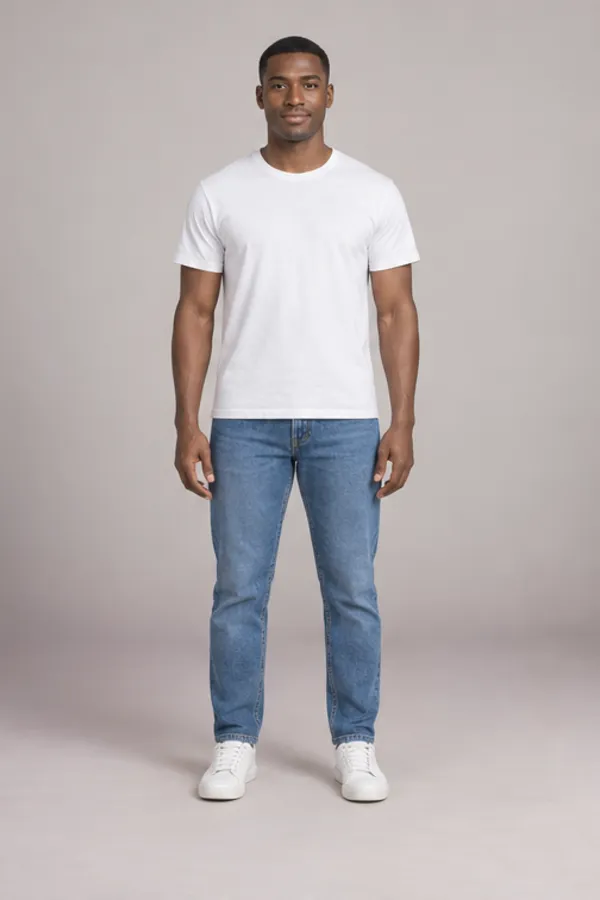
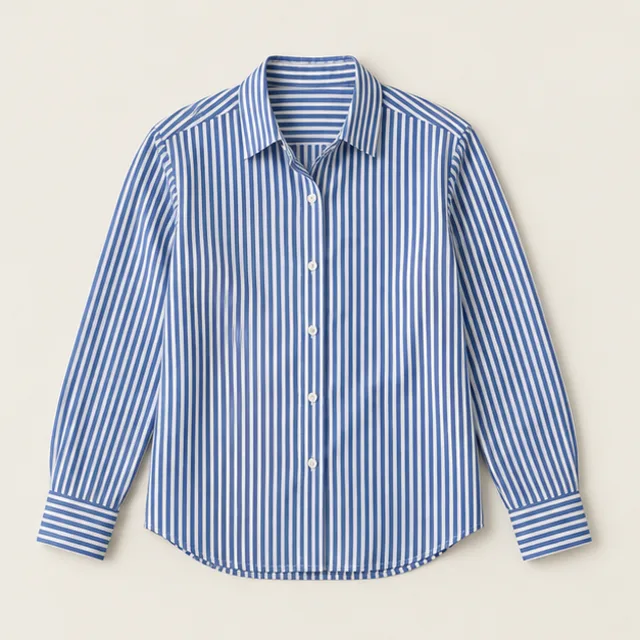
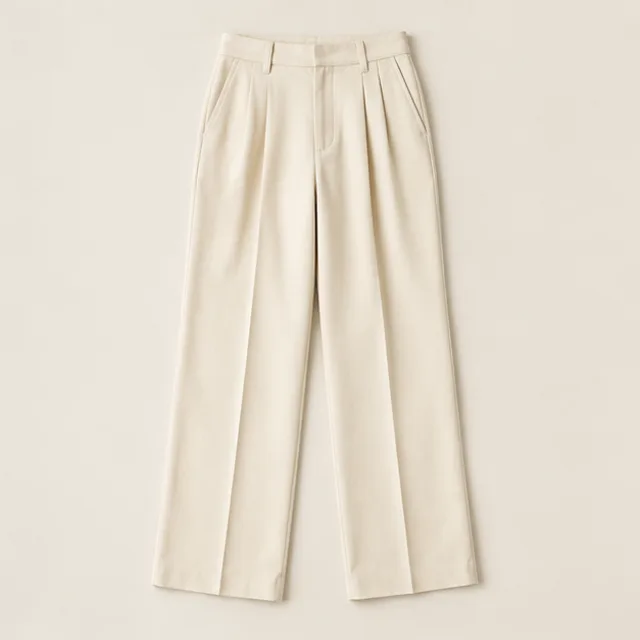
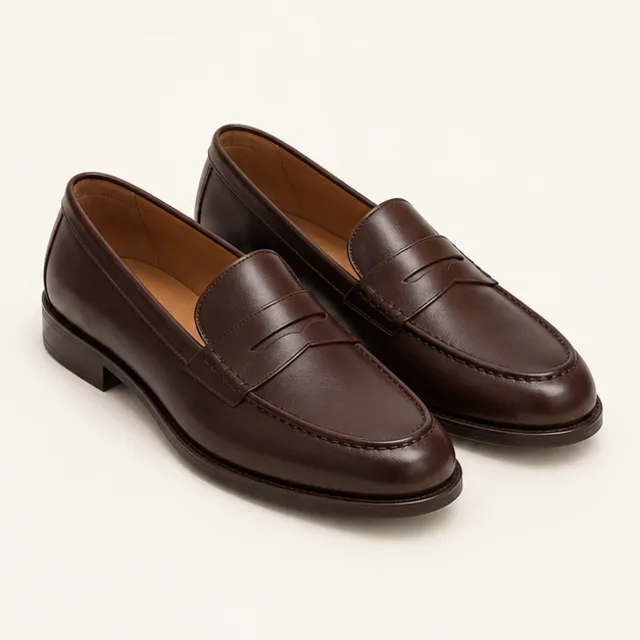
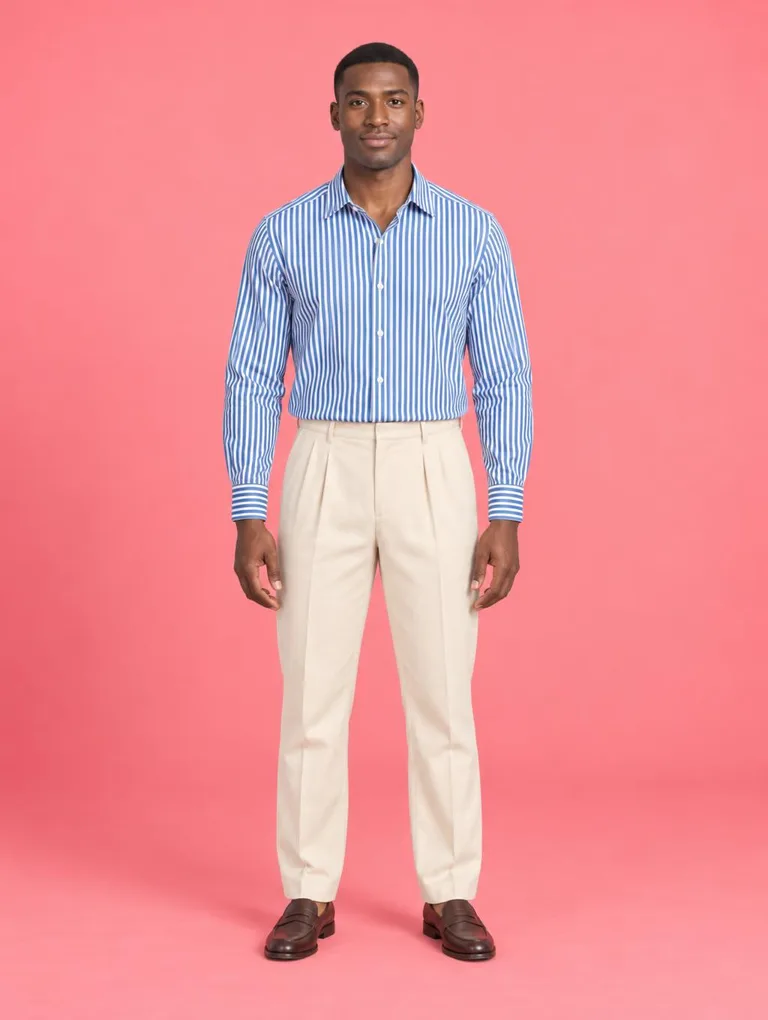
The top row contains earlier Sunburst edits of our sample people: three on High and one on Max. The row below contains styling illustrations made with OpenAI’s image tool. These examples show ideas to try, not a comparison of the two variants or a guarantee of your result.
High · 3 pieces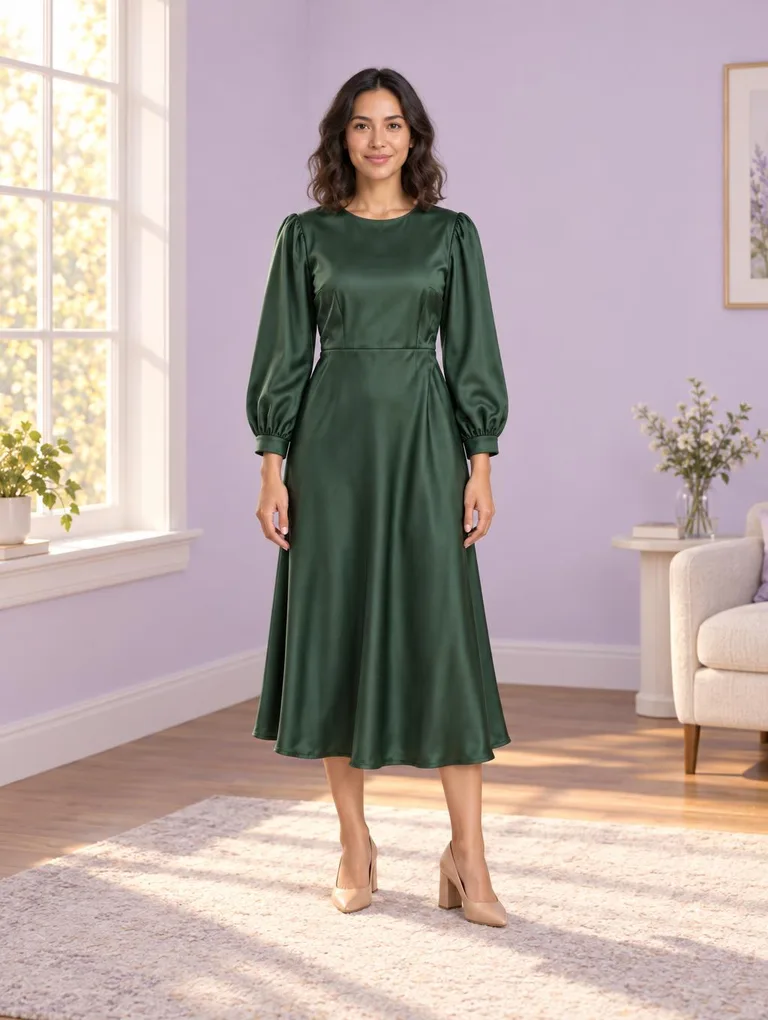 High · dress + room
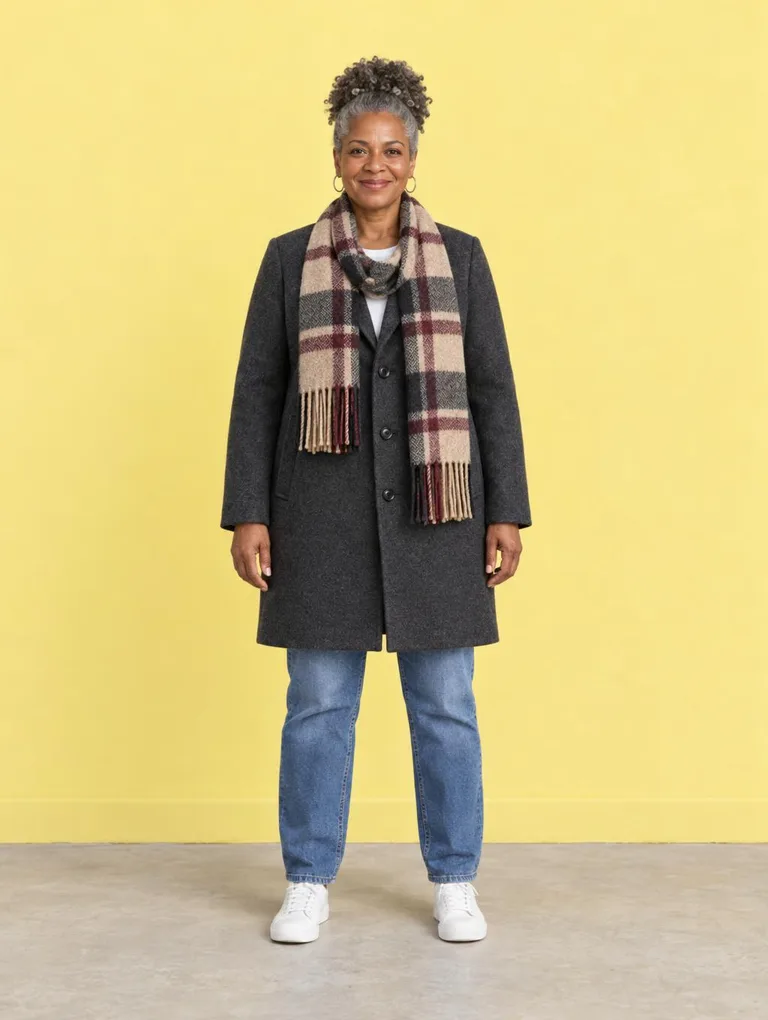 High · coat + scarf
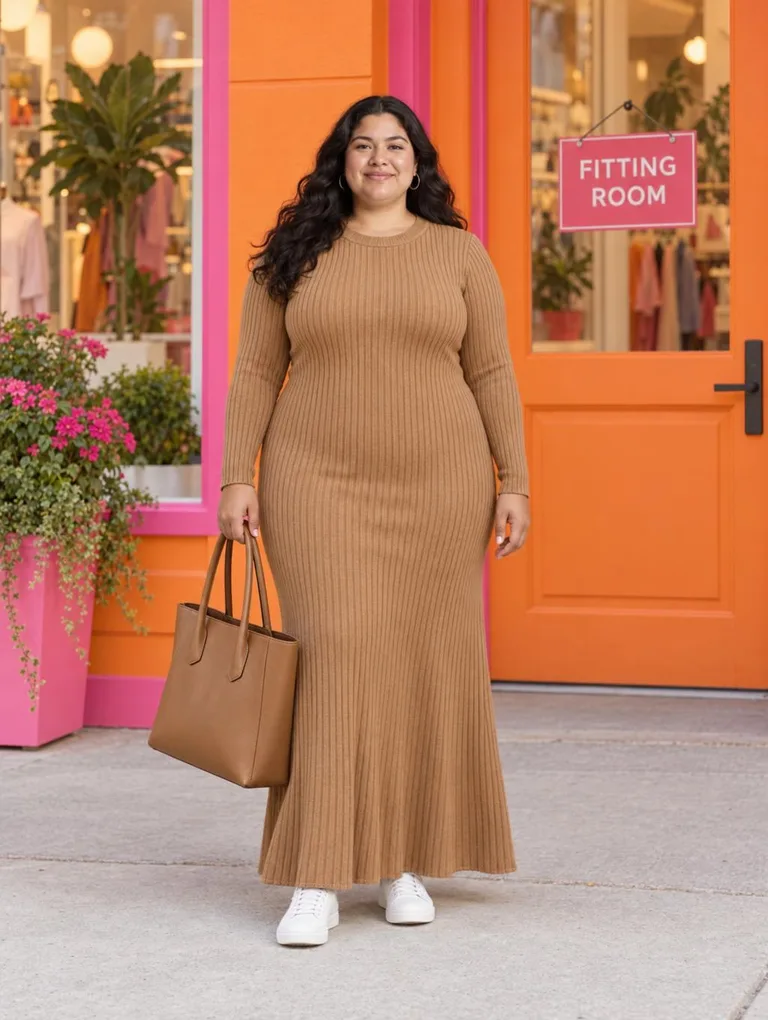 Max · dress, bag, sign
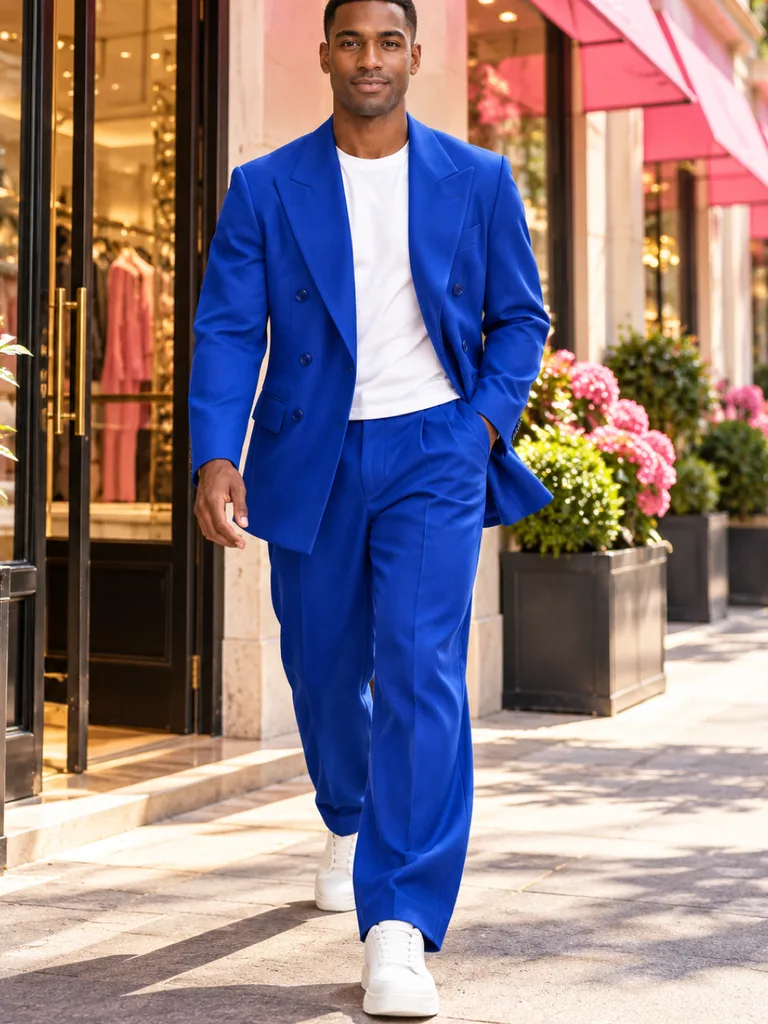 Cobalt suit · boutique
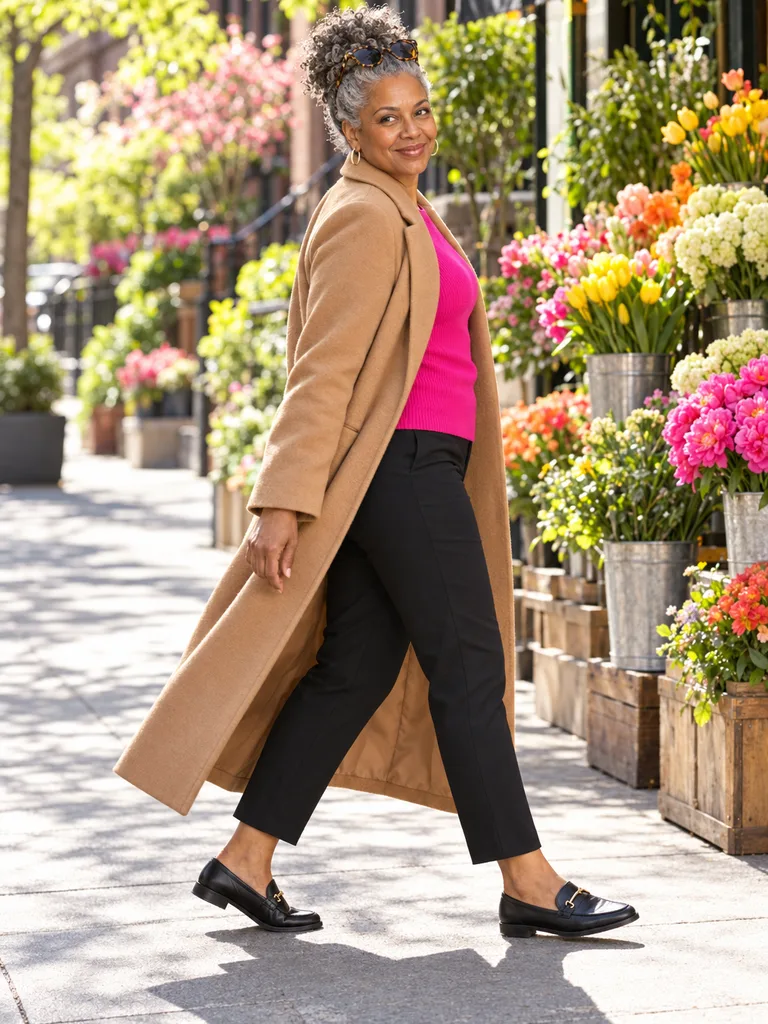 Camel coat · flower street
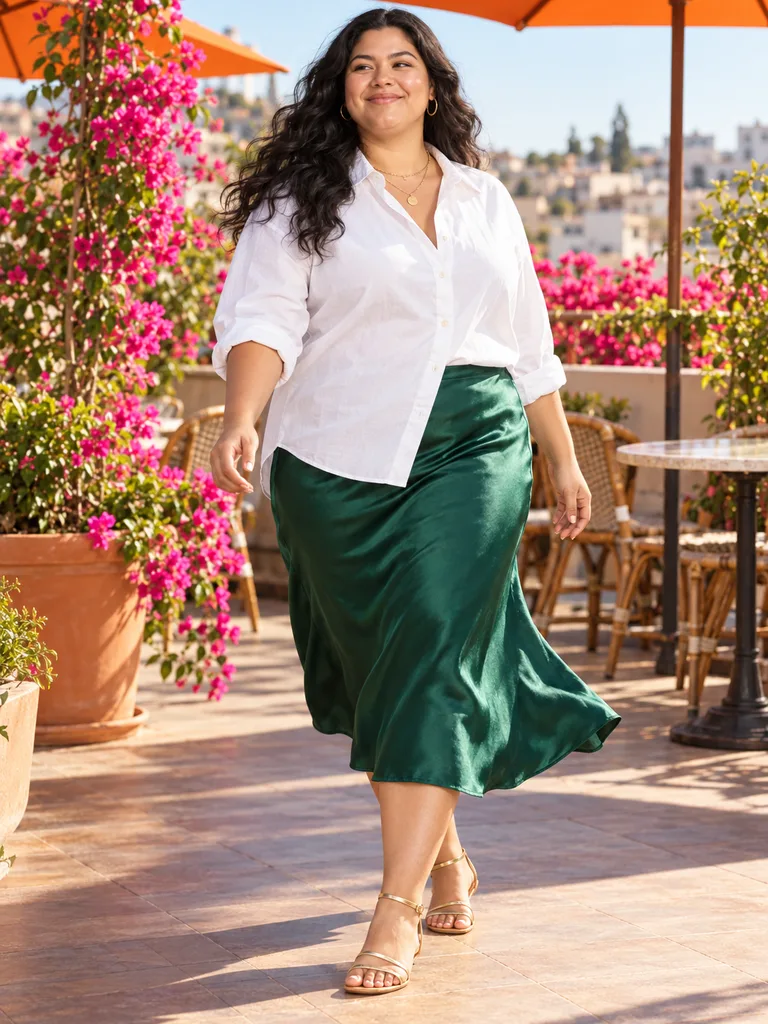 Satin skirt · rooftop
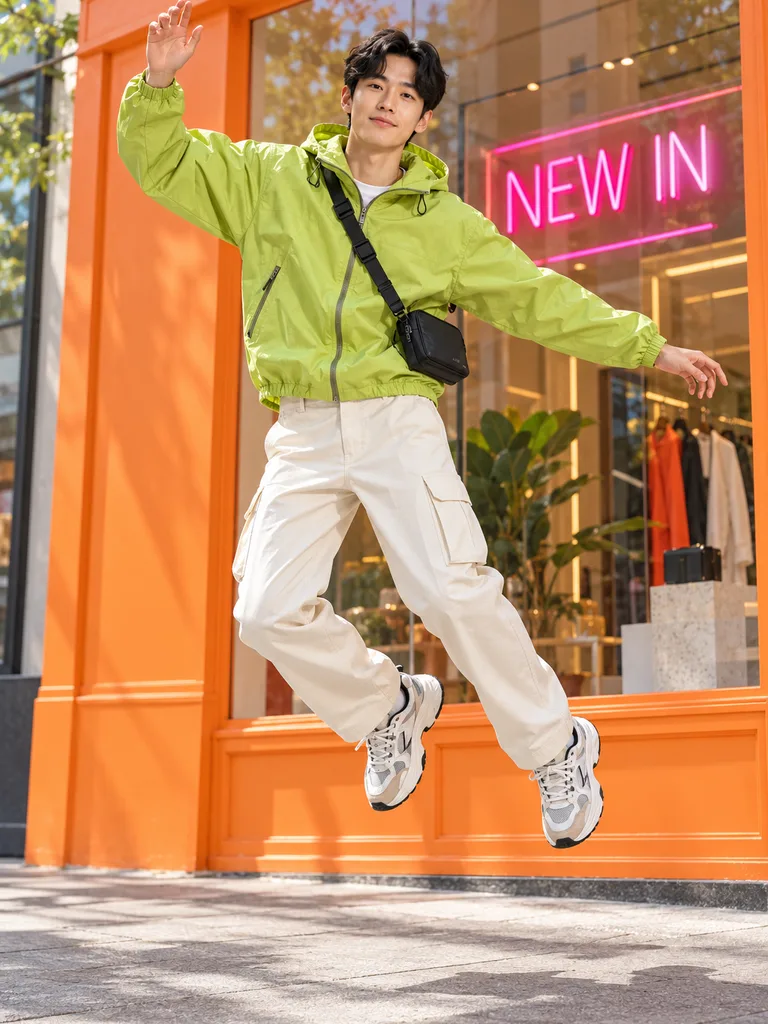 Windbreaker · NEW IN sign
Three kinds of people, three different reasons to reach for GPT Image 2.5.
See the coat and the knit together on you before ordering both.
Ask for the street, office or dinner you will wear it to, not a grey studio.
Every result lands in History and can be saved to My Closet.
Dress a sample person, or a model who agreed, in the piece you sell. Compare the result with the real satin sheen and stitching before publishing.
Ask GPT Image 2.5 for short signs or labels, then check every letter. An exact phrase in quotes is easier to verify than a vague instruction.
Compare every result with the real product: a model can still miss a seam.
Run the same photo of yourself through five outfits for a series that reads as one person.
Pick 9:16 for stories, 1:1 for a grid or 3:2 for a banner.
Ask for plain wall space on one side and add your text later.
Our rules are added to every request, OpenAI applies its own, and every photo and result passes our checks.
You must have permission to use the source photos and any logos. The full list of what we turn away is in the acceptable use policy.
No. OpenAI makes GPT Image 2.5; WearTryOn is an independent site that sends your request to it and shows the result. ChatGPT is OpenAI’s own app.
No. Developers call the API with their own key and billing; here you only need a WearTryOn account with any plan or credit pack. No code, no key.
No. You need any plan or credit pack. The Sunburst standard-square examples cost 70 credits on High or 170 on Max; other settings use the quote on the Create button. Failed runs are refunded.
The quality and actual pixel dimensions determine the GPT Image 2.5 credit quote. Sunburst and Flare use the same prices at matching settings. Changing quality or size updates the quote before you commit to a run.
It varies with the model, quality, resolution and the edit itself. Large images or intricate changes can take longer. Keep the page open while it works; a failed request returns its credits.
Short text, yes: a sign, a label, a word on a tee. Put the exact words in quotes, and pick Max when the letters matter.
Choose an aspect ratio, including 4:5, and a resolution preset in Settings. The exact width and height appear before you generate. GPT Image 2.5 offers explicit sizes rather than an automatic output size; large experimental presets are labeled.
Yes. Both GPT Image 2.5 variants are in Settings. Sunburst starts selected, and switching to Flare keeps your photos and words. The request uses the variant you choose; it does not silently substitute a different model.
Choose Transparent background with PNG or WebP. JPEG does not support transparency. Background control affects the generated output; it does not promise that every object edge will be perfect.
Waist-up or full length, facing the camera, in even light, with the clothes you want replaced in view. Tight headshots leave GPT Image 2.5 guessing about your body and give weaker results.
Not by us. Temporary copies are deleted after the run, and results from your own photos stay private to your account for 30 days.
Write the change, add your pictures, and choose Sunburst or Flare. Review the quality, pixel size and credits, then create your result.
Back to the Panel